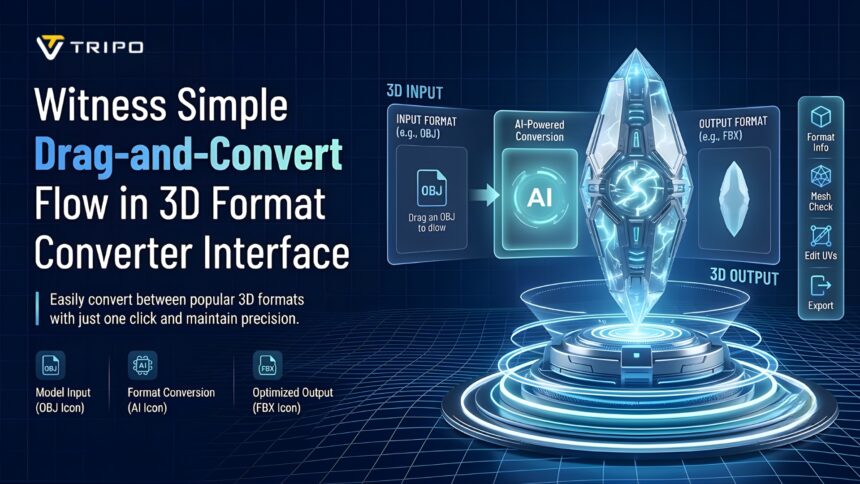
Today’s 3D workflows require tools that make complex tasks easy and efficient. Simplicity is a great need for creators who are working with a wide range of file formats on a daily basis. Intuitive workflows minimize learning curves and help projects get done more quickly. Tripo 3D addresses these requirements through a streamlined drag-and-convert workflow. It is designed with a user-friendly interface that allows users to complete conversions in fewer steps. A simplified environment also reduces workflow complexity across different project types.
- Understanding the Drag-and-Convert Workflow
- Interface Elements That Simplify Conversion Tasks
- How Tripo 3D Format Converter Reduces Conversion Friction
- Steps to Witness Simple drag-and-convert flow in the 3D Format Converter interface
- Interface Features That Support Smooth Conversion
- Working with Multiple Formats Through a Unified Interface
- How the Interface Supports Accuracy and Asset Quality
- Why Simplified Interfaces Matter for Modern 3D Workflows
- Conclusion
Understanding the Drag-and-Convert Workflow
The drag-and-convert approach aims to reduce the steps involved in the format conversion process. Users do not need to navigate multiple menus and can instead focus on files and conversion controls. Tripo 3D simplifies format transitions by automatically detecting files and supporting the processing workflow. This makes the conversion process easier for both new and experienced creators. Many users also utilize assets created via the photo to 3d model workflows, and quick format adaptation is growing in importance. Reducing manual effort supports smoother project management and faster asset preparation.

Interface Elements That Simplify Conversion Tasks
Here are a few interface features that can help to create a more successful conversion experience. Supported files can be dropped in the source upload area. Automatic format recognition automatically detects uploaded assets without needing to be configured. The selection of the output format is still obvious during the workflow. Download and file management tools give direct access after the processing completes. The combination of these elements provides a single 3d converter environment that enables efficient asset management.
How Tripo 3D Format Converter Reduces Conversion Friction
Many common challenges involved in file conversion workflows are reduced in Tripo 3D. No setup procedures are required, allowing users to begin immediately without navigating complex file structures. The number of conversion steps is kept to a minimum so that focus remains on preparing assets rather than managing tools. The simplified interface structure also reduces interruptions during project development. Improved access to conversion functions supports faster workflows in various creative and technical processes.
Steps to Witness Simple drag-and-convert flow in the 3D Format Converter interface
Step 1: Reach the conversion interface
- First, access the Tripo 3D official site. Next, go to the “Resources” tab and click on “Converter” under the “Tools” menu.
- This action will take you to the Tripo 3D formats conversion page.
Step 2: Drag and drop the model file
- Now drag, upload, or paste the 3D model file for which you want to change the format in the “Source” area.
- Tripo AI’s 3D file converter will automatically detect the file format and be ready to convert.
Step 3: Convert and receive the new file
- Choose the new format to convert. You can select from the OBJ, USTZ, GLB, STL, PLY, and FBX. Finally, click the “Convert Now” tab.
- Your source 3D model file will be converted to another 3D format as you require. The file will be automatically downloaded and saved to your local device.
Interface Features That Support Smooth Conversion
The interface includes several features designed to simplify conversion tasks and improve workflow continuity.
- Drag and Drop upload: Makes it easy to upload files and enables rapid model preparation.
- Automatic Detection: Automatically detects the source formats and minimizes manual configuration.
- Format Selection Panel: It clearly shows the output options depending on the workflow needs.
- Quick Conversion Trigger: Starts with less action and can move through quicker.
- Direct Download Access: Downloads assets that have been converted immediately after the conversion.
- Cross-Platform Compatibility: Compatible with various platforms and offers flexibility in access.
Working with Multiple Formats Through a Unified Interface
Many modern projects require multiple 3D formats to support smooth transitions. Tripo 3D allows users to manage STL, OBJ, FBX, GLB, USDZ, and PLY files within a single interface. Designers, developers, and visualization specialists can handle diverse requirements more efficiently. The platform also helps to ease the transition between software ecosystems. Multiple formats provide greater flexibility throughout different project phases.
How the Interface Supports Accuracy and Asset Quality
During format conversion processes, maintaining asset quality remains important. Tripo 3D focuses on maintaining geometry integrity. Consistent scaling helps maintain asset proportions across supported formats. Smoothing information and surface normals are also preserved when available. Asset information, including textures, materials, and metadata, can be preserved depending on the source and destination formats. These features are especially useful when creating a low poly 3d model that can be further edited, visualized, or used in interactive applications. Usability can also be improved through automated cleanup and mesh optimization functions that preserve model details.
Why Simplified Interfaces Matter for Modern 3D Workflows
The ease of use of an interface directly affects workflow efficiency in creative industries. Easy-to-understand layouts save time searching for required functions. Simple navigation structures make it easier for new users to learn the workflow. Tripo 3D allows creators to focus on project goals without being distracted by complex software operations. A clean interface also reduces the likelihood of operating errors. As 3D workflows expand across industries, easy-to-use conversion tools are becoming increasingly important for maintaining productivity and consistency.
Conclusion
Drag-and-convert workflows are useful for managing different 3D formats by reducing unnecessary steps and simplifying interactions. Easy-to-use interfaces allow faster project work, no matter the level of expertise. Tripo 3D provides simplified format management through automatic format detection, direct file handling, and convenient conversion controls. The integrated workflow helps creators manage various file requirements more efficiently. A simplified conversion experience can support asset preparation and project development throughout modern 3D workflows.